
What Your Smart TV Actually Sends Home, and How to Switch It Off
A modern television is a computer with a screen attached, and like any computer it sends data about itself. Two years after you plug it in, most owners have no idea what they agreed to during those first five minutes of setup, when a wall of consent screens appeared and everyone tapped accept to get to the picture.
That is worth revisiting, because the data a smart TV collects is more specific than most people assume, and almost all of it can be switched off in under twenty minutes.
What a smart TV actually collects
There are five categories, and they are not equally sensitive.
- What you watch. Which app you opened, what you played, when you stopped, and on some sets what you watched through an aerial or HDMI device. This is the valuable one.
- Advertising identifiers. A resettable ID that advertisers use to connect your viewing to what they know about you elsewhere.
- Voice recordings. Only from the remote or the set’s microphone, and only when a voice feature is triggered, but those clips are sent to a server to be transcribed.
- Technical and diagnostic data. Model, firmware, app crashes, and on some sets a device fingerprint built from screen size, region and language.
- Network information. Your IP address and rough location derived from it.
Automatic content recognition, in plain English
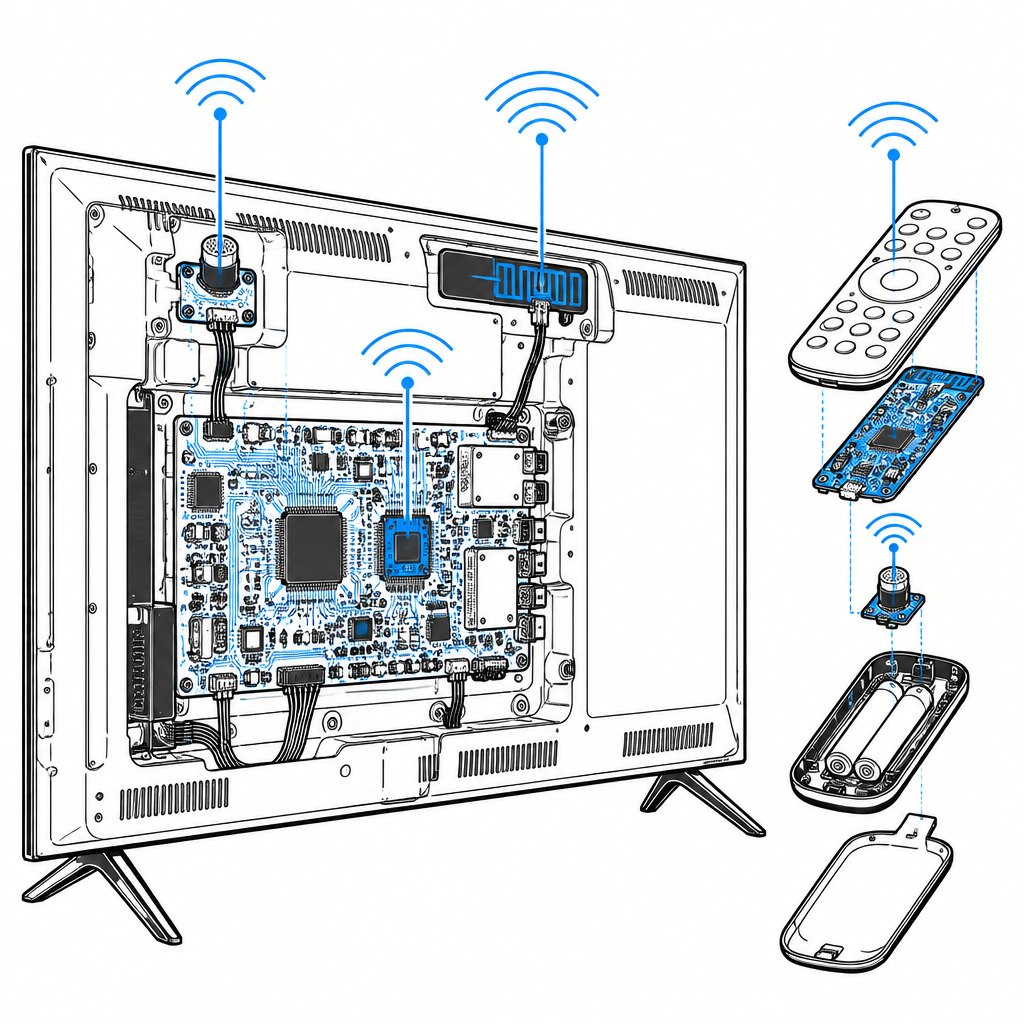
The technology to know about is automatic content recognition, usually shortened to ACR. It takes small samples of what is on screen, converts them into a fingerprint, and matches that against a database of known programmes and adverts. That is how a TV can offer “watch this next” recommendations and how the manufacturer can tell an advertiser that a household watched a particular campaign even when it played on a streaming app the TV does not control.
ACR is the part of smart TV tracking that reaches furthest into a normal evening, because it does not depend on you using the TV’s own apps. It is also the part that is easiest to switch off, and there is no practical downside: you lose nothing except more targeted advertising.
The ad ID, and how it follows you
Your TV has an advertising identifier, the same idea as the advertising ID on your phone. Advertisers do not need your name: they group the ID with a profile, then match behaviour across devices through data brokers or through the same household IP address. Resetting the ID breaks the pattern; switching off interest-based advertising on the set stops it being used at all.
Does the TV listen to your conversations?
Mostly, no, and the scare stories exaggerate. What is true is narrower and worth knowing. Voice remotes with a microphone button send audio only while the button is held. Sets with a far-field microphone designed for hands-free control do listen for a wake word locally, and keep a portion of the audio to detect it, but the recording of a full command is uploaded only after the wake word. Manufacturers keep transcripts and clips for a period to improve recognition.
The practical answer: if you do not use voice control, turn it off in the privacy menu. Then there is no always-listening function left to worry about.
Where to find the switches
Menu names change between models, but the pattern repeats: a privacy section inside settings, plus a separate advertising section. These are the common locations.
| Platform | Where to look | What to turn off |
|---|---|---|
| Samsung | Settings, then All Settings, then Support, then Terms and Privacy, or the Privacy Choices item on the home bar | Viewing Information Services, Interest Based Advertising, Voice Recognition |
| LG | Settings, then All Settings, then General, then System, then Additional Settings, and the Support menu for privacy and terms | Live Plus, interest-based advertising |
| Roku TV | Settings, then Privacy | Smart TV experience, advertising, personalised recommendations |
| Amazon Fire TV | Settings, then Preferences, then Privacy Settings | Interest-based ads, device usage data, app usage data, collect app and over-the-air usage |
| Google TV and Android TV | Settings, then Privacy, plus the Ads section | Usage and diagnostics, ads personalisation, delete the advertising ID |
Two names worth recognising on older sets: Samsung used to label the same tracking as SyncPlus or Synchronization, and on some Sony televisions it appears as Samba Interactive TV. Both sit in the privacy section of the settings menu.
Your phone is the bigger talker
Compared with the phone in your pocket, the television is an amateur. Two settings cover most of it. On iPhone, Settings, Privacy and Security, Tracking, and switch off “Allow Apps to Request to Track”, which stops apps asking altogether. On Android, Settings, Google, All services, Ads, and delete the advertising ID, which prevents apps using it. Location history and web and app activity are separate switches in the same account, and both are worth reviewing once a year.

What the law says in the UK
Tracking on a smart TV sits under two regimes. The UK GDPR requires a lawful basis and transparency for personal data, and the Privacy and Electronic Communications Regulations require consent for storing or accessing information on your device that is not strictly necessary. Interest-based advertising is not strictly necessary, which is why the consent screens exist at all, and why refusing them should not stop the television working.
The regulator is the Information Commissioner’s Office, and pressure does change behaviour. In July 2026 Meta withdrew an Instagram image feature within days after privacy and copyright complaints, having said it had missed the mark. The lesson is not that companies are careful, it is that defaults are chosen for them, and that the settings are the only part you control.
What actually works
Settings first, since they are free. Then network level: putting the television on a guest network, or behind a DNS filter on your router, removes advertising and tracking domains for every app on the set without touching the picture quality. A streaming stick in a “dumb” HDMI port is the other route, because the stick’s privacy settings are often clearer than the television’s, and the set itself can be left unconnected to the internet.
The twenty minute reset
- Open the television’s privacy menu and turn off ACR and interest-based advertising.
- Reset the advertising ID, so the old profile no longer matches.
- Turn off voice control if you never use it.
- Revoke app permissions on the phone that do not need them, starting with microphone and precise location.
- Delete the phone’s advertising ID and switch off cross-app tracking.
None of this makes you invisible, and none of it is a reason to avoid a smart TV. It just moves the choice back to you rather than the setup screen. If you want to go further on the account side, our guide to passkeys covers the other half of the same problem: who can get into your accounts once the device is set up. And our privacy policy sets out what this site does with your data, which is a much shorter list.
Sources: manufacturer privacy documentation for Samsung, LG, Roku, Amazon and Google TV, ICO guidance on consent and the UK GDPR, and reporting on Meta’s July 2026 withdrawal of its Muse Image feature. Menu paths vary by model year and region.